
 阅读时间:7 分钟
  浏览量:1878次


The device manager in an English system is a powerful tool for managing hardware, troubleshooting issues, and ensuring that drivers are up to date. Key functions include device status monitoring, driver updates, hardware changes detection, and device troubleshooting. One crucial aspect is driver updates. Keeping drivers updated ensures that hardware components function correctly and efficiently, which can prevent system crashes and improve performance.
I. DEVICE STATUS MONITORING
The device manager offers an immediate overview of all hardware components connected to the system. Each device is listed under a specific category, such as Display Adapters, Network Adapters, Sound, Video, and Game Controllers, etc. The status of each device is indicated by icons: a yellow triangle with an exclamation mark signals a problem, a red "X" indicates a disabled device, and a blue "i" on a white field shows that a device is using a manual configuration. Users can click on a device to view its properties, check its current status, and access detailed information about the driver version, resource usage, and conflicts.
Monitoring device status is essential because it allows users to identify and resolve issues promptly. For instance, if a network adapter shows a yellow triangle, it may indicate a driver issue or a hardware conflict, which can be troubleshooted directly from the device manager.
II. DRIVER UPDATES
Drivers are software components that allow the operating system to communicate with hardware devices. Regular updates are critical because they include improvements, bug fixes, and compatibility enhancements. To update a driver, users can right-click on the device and select "Update driver." The system then searches for the latest driver software or allows users to manually install a driver downloaded from the manufacturer's website.
Updating drivers can significantly enhance system performance and stability. For example, a graphics driver update can improve gaming performance and resolve compatibility issues with new software. It is recommended to periodically check for driver updates, especially after installing new hardware or experiencing system issues.
III. DETECTING HARDWARE CHANGES
The device manager can detect changes in hardware configurations. When new hardware is added to the system, the device manager automatically updates the list of devices. If the new hardware is not detected, users can click on the "Scan for hardware changes" button. This feature is useful for ensuring that all connected devices are recognized and configured correctly.
Detecting hardware changes is essential for maintaining an up-to-date system configuration. It helps in quickly identifying and resolving issues with newly connected devices, ensuring they function as expected.
IV. DEVICE TROUBLESHOOTING
Device manager includes built-in troubleshooting tools to help diagnose and fix hardware problems. Users can access these tools by right-clicking on a device and selecting "Troubleshoot." The troubleshooting wizard guides users through a series of steps to identify and resolve issues. This can involve checking for driver updates, resolving conflicts, or recommending further actions.
Effective device troubleshooting is crucial for minimizing system downtime and maintaining optimal performance. It provides users with a systematic approach to solving hardware issues, reducing the need for professional technical support.
V. DISABLING AND UNINSTALLING DEVICES
The device manager allows users to disable or uninstall devices. Disabling a device stops it from functioning without removing the driver, which can be useful for troubleshooting or managing power consumption. Uninstalling a device removes its driver and associated software from the system.
Disabling and uninstalling devices are important for managing system resources and troubleshooting. For instance, disabling a malfunctioning device can help isolate the cause of system issues, while uninstalling and reinstalling a device can resolve driver-related problems.
VI. VIEWING HIDDEN DEVICES
Some devices are not visible by default in the device manager. Users can view hidden devices by selecting "View" and then "Show hidden devices." This is useful for managing devices that are not currently connected to the system but have previously installed drivers.
Viewing hidden devices helps in comprehensive system management. It ensures that users are aware of all installed devices and can manage or troubleshoot them as needed, even if they are not currently connected.
VII. RESOURCE MANAGEMENT
The device manager provides detailed information about the resources each device uses, such as IRQs (Interrupt Requests), I/O (Input/Output) ports, and DMA (Direct Memory Access) channels. Users can view and configure these resources to resolve conflicts or optimize performance.
Resource management is essential for ensuring efficient system operation. Proper configuration of hardware resources can prevent conflicts and improve overall system stability.
VIII. DEVICE PROPERTIES
Each device in the device manager has a properties window that provides comprehensive information, including the device type, manufacturer, location, and status. It also includes tabs for driver details, resource usage, and event logs.
Understanding device properties is important for effective hardware management. It allows users to access all necessary information to troubleshoot and configure devices appropriately.
IX. USING DEVICE MANAGER FOR SECURITY
Device manager can also play a role in system security. By keeping drivers up to date and ensuring that only necessary devices are enabled, users can minimize vulnerabilities. Outdated drivers can have security flaws that might be exploited by malicious software.
Maintaining device security through the device manager is vital for protecting the system from potential threats. Regular updates and careful management of connected devices contribute to a secure computing environment.
X. ADVANCED SETTINGS AND CONFIGURATIONS
Advanced users can access deeper settings and configurations through the device manager. This includes configuring driver settings, updating the BIOS (Basic Input/Output System), and adjusting system performance settings.
Advanced settings allow for fine-tuning system performance and resolving complex hardware issues. Users with technical expertise can optimize their system to meet specific needs and preferences.
In conclusion, the device manager in an English system is a comprehensive tool that is essential for managing hardware, updating drivers, troubleshooting issues, and optimizing system performance. By leveraging its features, users can ensure that their system runs smoothly and efficiently.
相关问答FAQs:
What is an English System Device Manager?
An English System Device Manager refers to a software tool that allows users to monitor, manage, and configure hardware devices connected to a computer or network system. This tool provides a user-friendly interface for managing various components such as printers, graphics cards, audio devices, and network adapters. By utilizing an English System Device Manager, users can easily identify device issues, update drivers, and ensure that all connected devices are functioning correctly.
One of the primary functions of a System Device Manager is to provide detailed information about each device, including its status, properties, and installed drivers. Users can access this information to troubleshoot problems or to optimize the performance of their devices. Additionally, the Device Manager allows users to enable or disable devices, which is particularly useful for resolving conflicts or testing hardware.
How to Use the System Device Manager Effectively?
Using the System Device Manager effectively requires a basic understanding of its features and functions. Here are some tips to maximize its utility:
-
Accessing the Device Manager: On a Windows system, users can access the Device Manager by right-clicking on the Start menu and selecting "Device Manager" from the list. For Mac users, the equivalent is found in the "System Information" application.
-
Identifying Devices: In the Device Manager, devices are categorized by type. Users can expand each category to view the devices within it. Look for any devices with a yellow exclamation mark, which indicates a problem that needs attention.
-
Updating Drivers: Keeping device drivers updated is crucial for optimal performance. Users can right-click on a device and select "Update Driver" to search for the latest driver software. This can resolve compatibility issues and enhance functionality.
-
Troubleshooting Issues: If a device is not functioning properly, users can right-click on it and select "Properties" to view error messages and troubleshooting options. The Device Manager often provides solutions or links to online resources for further assistance.
-
Enabling/Disabling Devices: To test whether a device is causing issues, users can disable it and observe the system's performance. This can help isolate problems related to hardware conflicts.
By following these steps, users can effectively manage their system devices and ensure their computer or network operates smoothly.
What Are the Benefits of Using an English System Device Manager?
Utilizing an English System Device Manager offers several advantages for both individual users and organizations:
-
Enhanced Control: Users gain greater control over their hardware resources. The ability to view and manage devices from a centralized interface simplifies the process of troubleshooting and maintenance.
-
Improved Performance: Regularly updating drivers and managing device settings can lead to improved system performance. Users can optimize their devices for specific tasks, ensuring that they operate efficiently.
-
Simplified Troubleshooting: When hardware issues arise, the Device Manager provides quick access to error codes and diagnostic tools. This allows users to identify and resolve problems without extensive technical knowledge.
-
Increased Productivity: For organizations, a well-maintained system leads to increased productivity. By ensuring that all devices are functioning correctly, employees can focus on their tasks without interruptions caused by hardware failures.
-
Time-Saving: The convenience of managing devices from a single location saves time. Users can quickly address issues, update drivers, and configure settings without navigating through multiple menus or applications.
With these benefits, an English System Device Manager becomes an essential tool for anyone looking to optimize their computer or network performance.
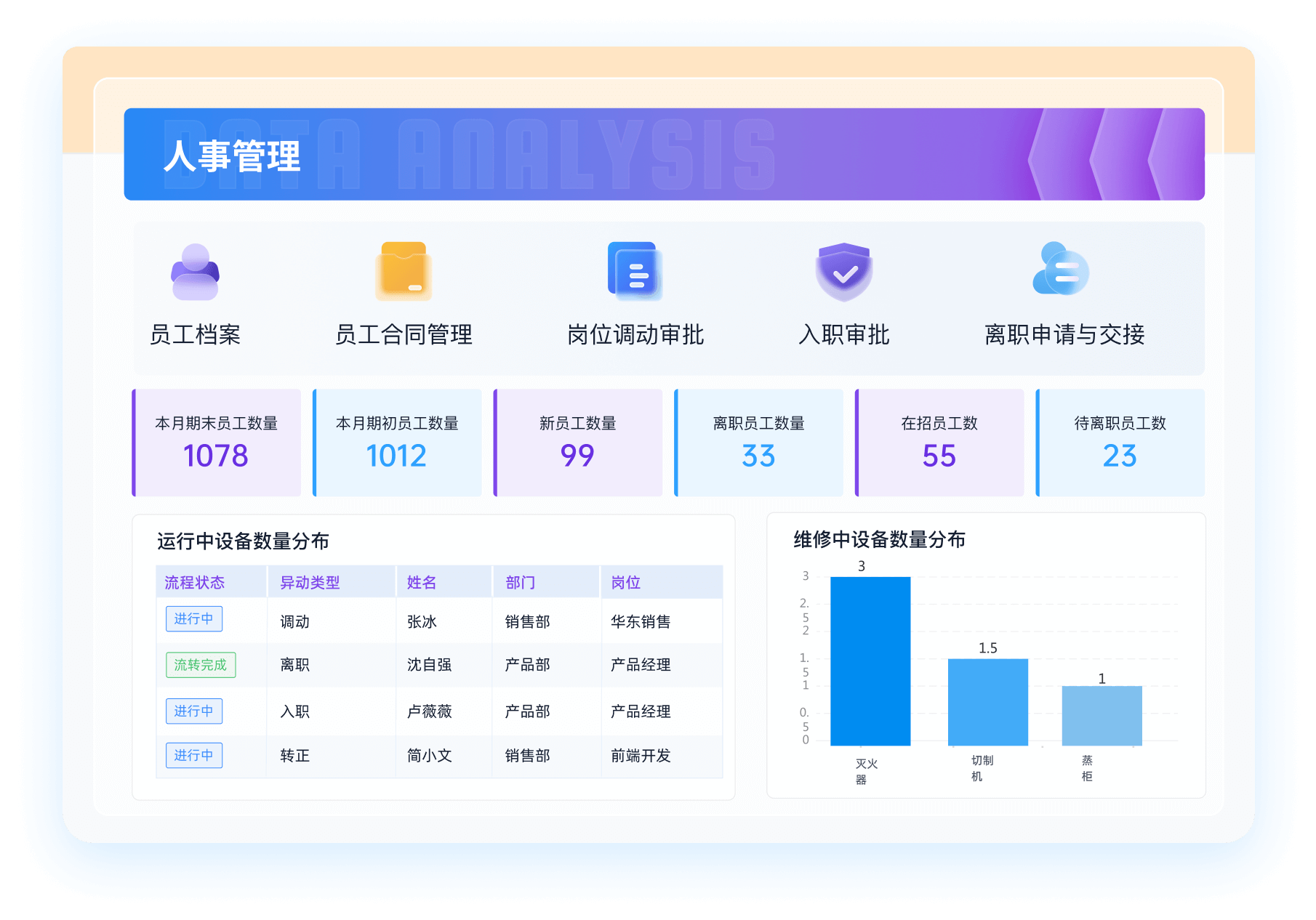
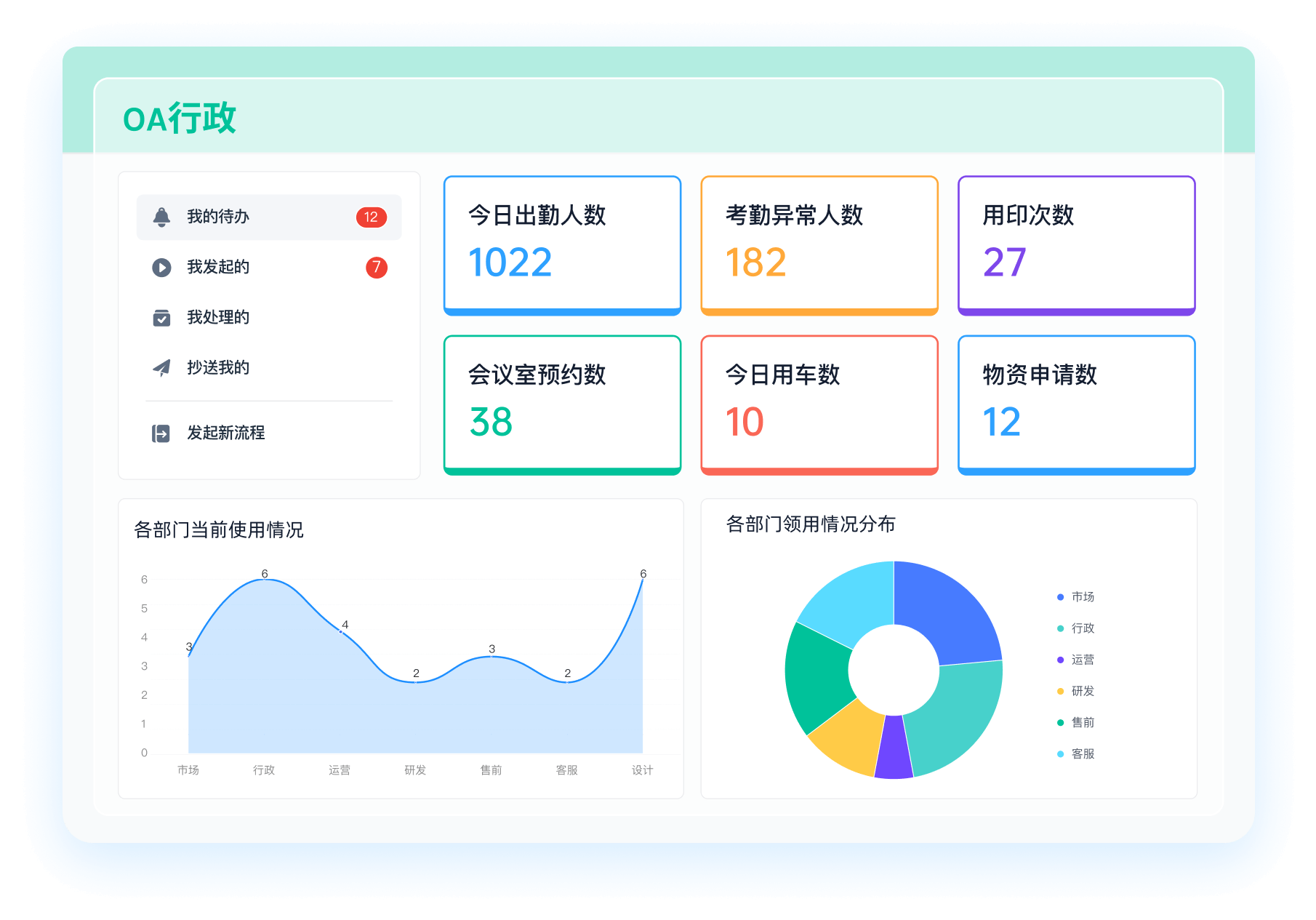
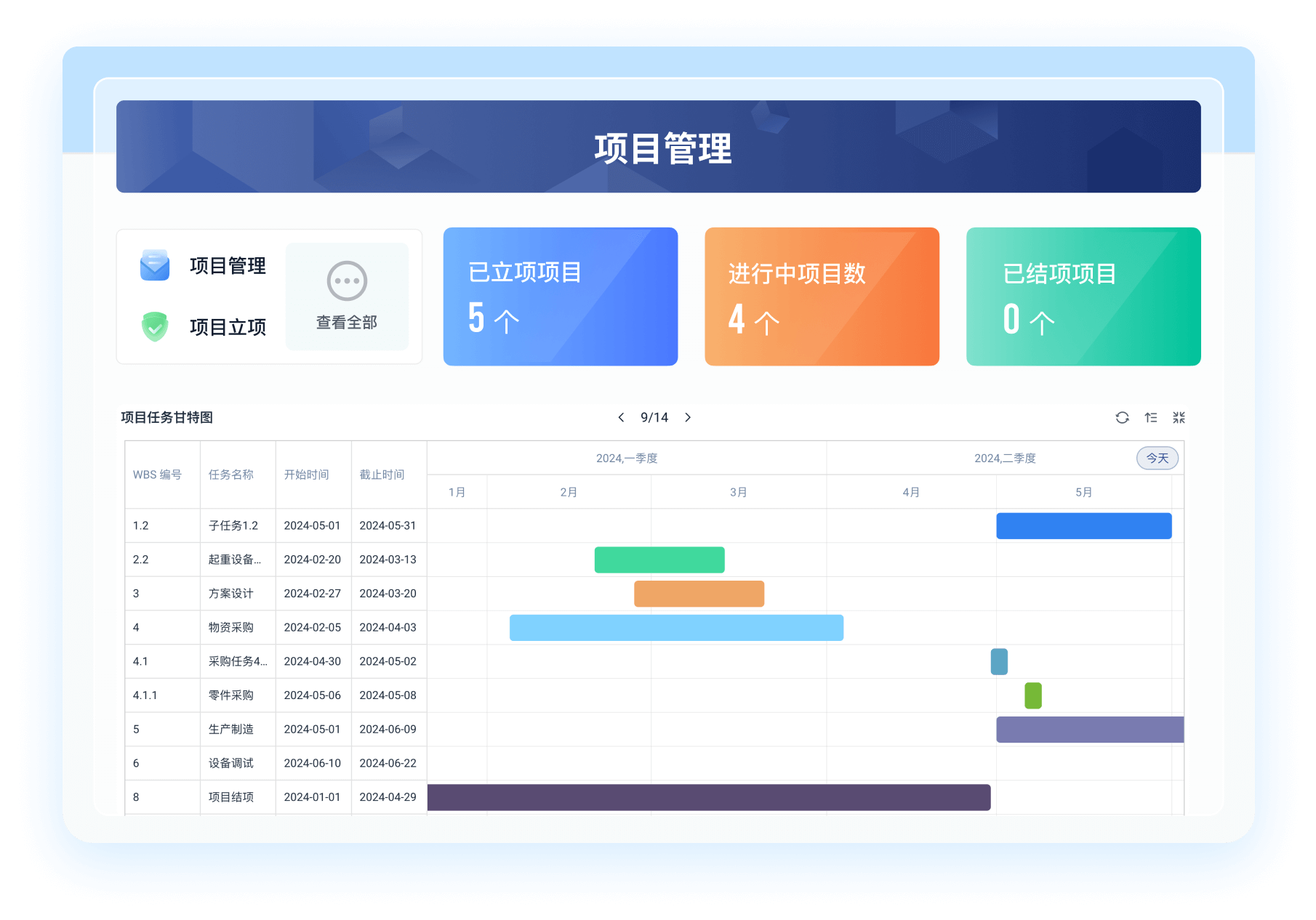
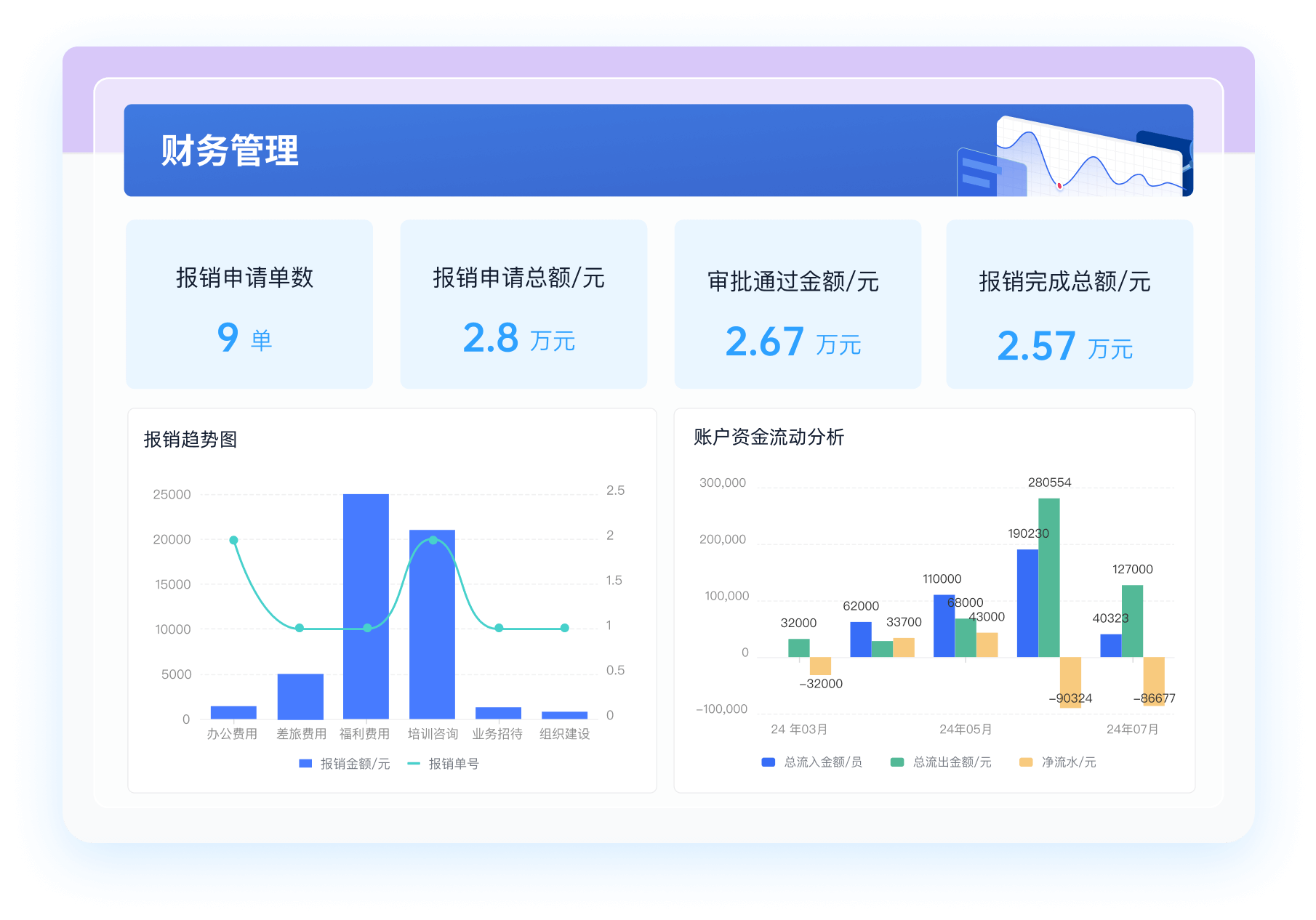
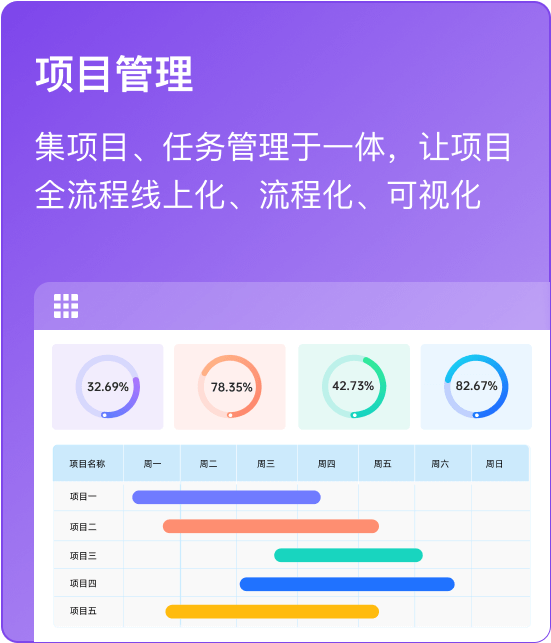
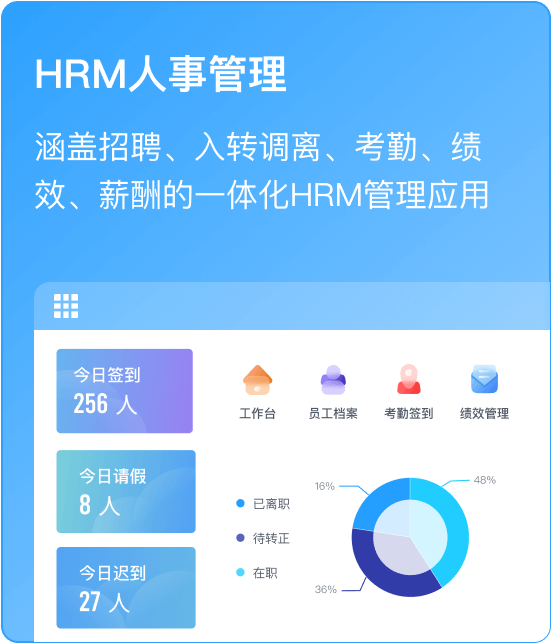
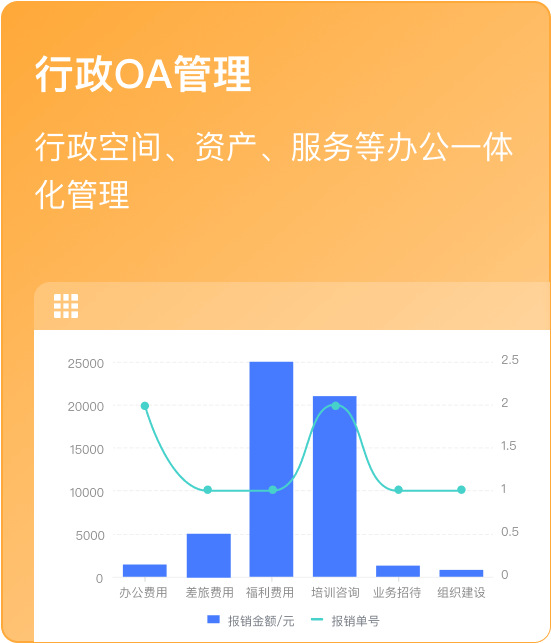
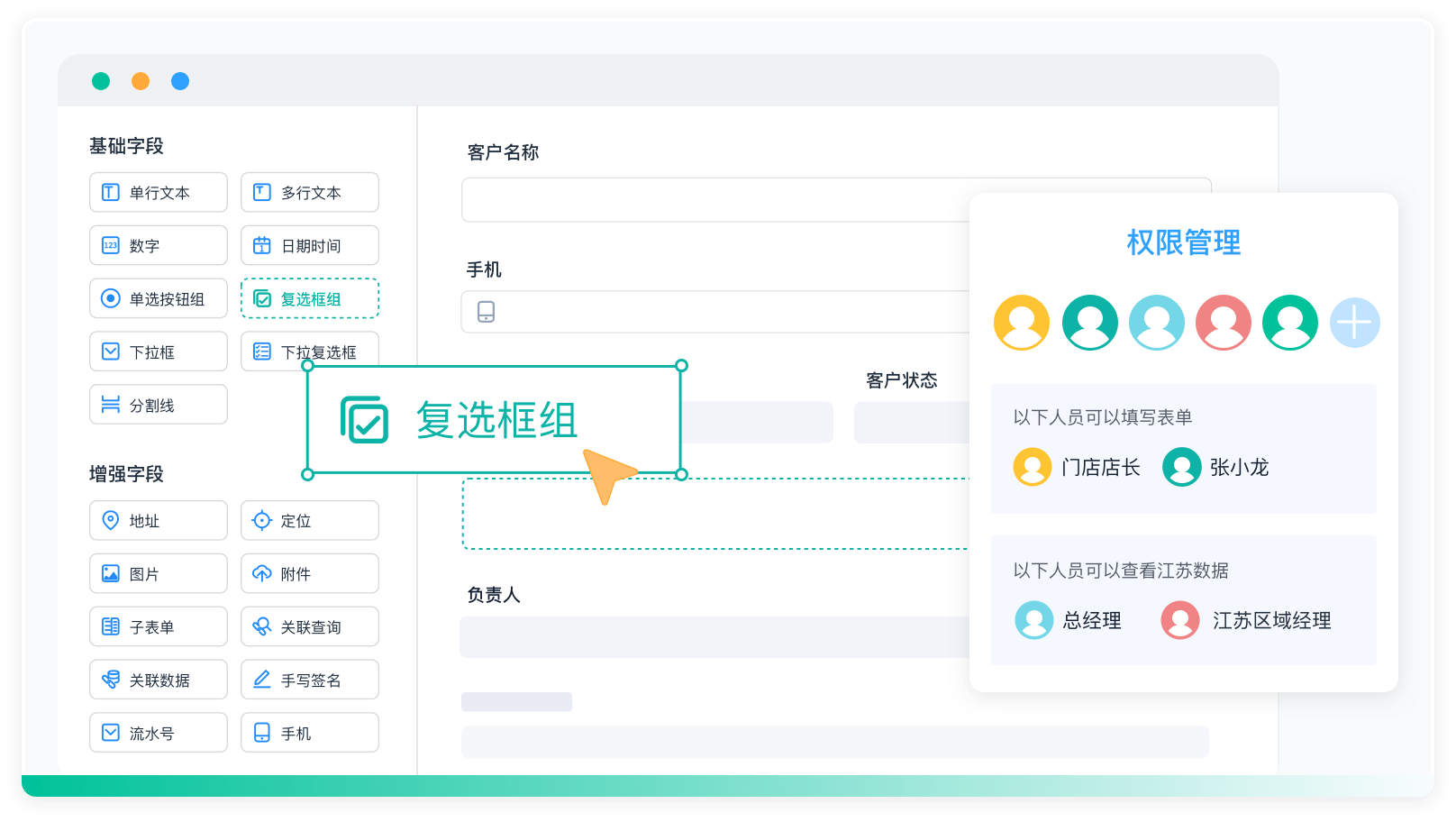
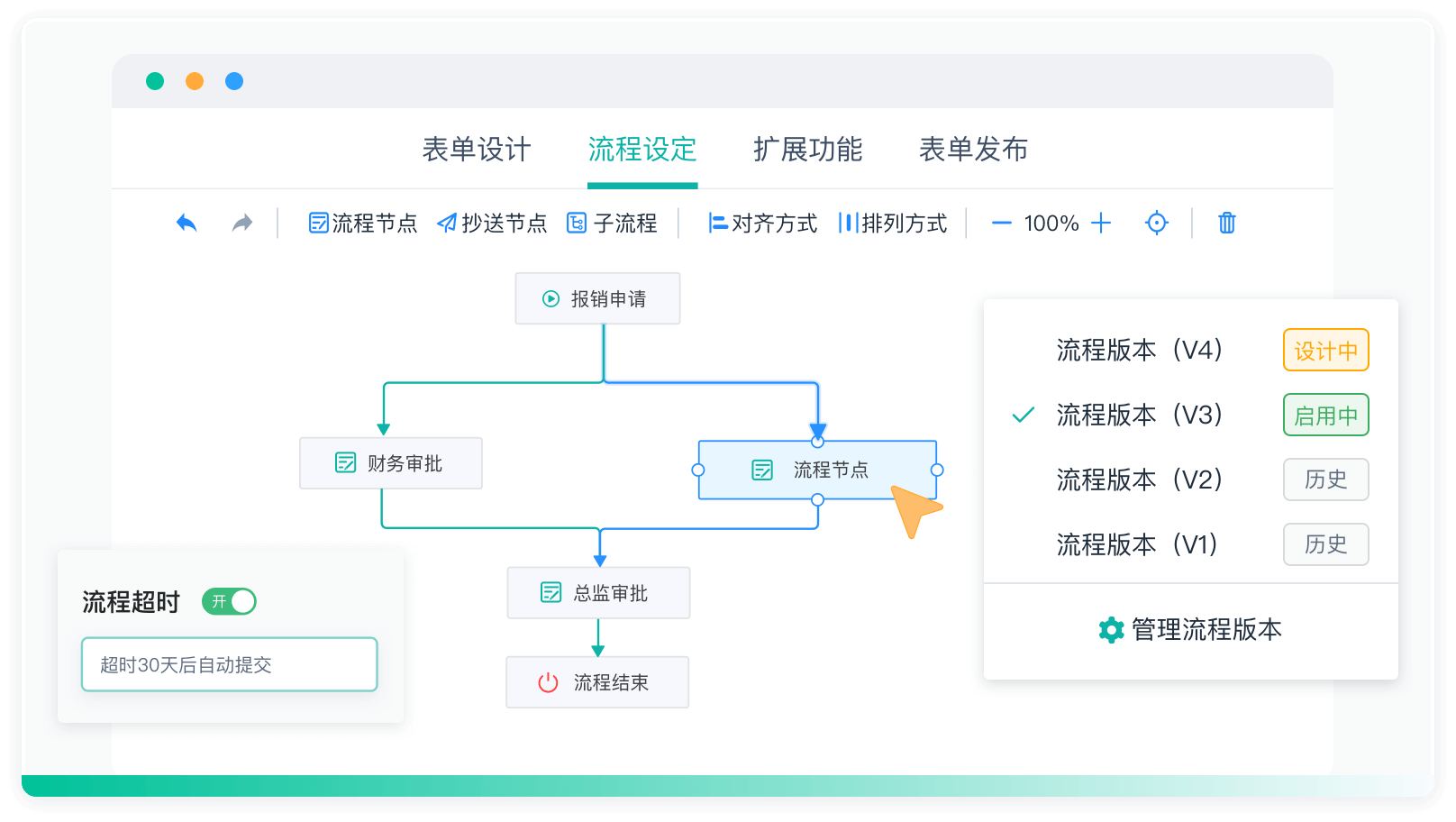
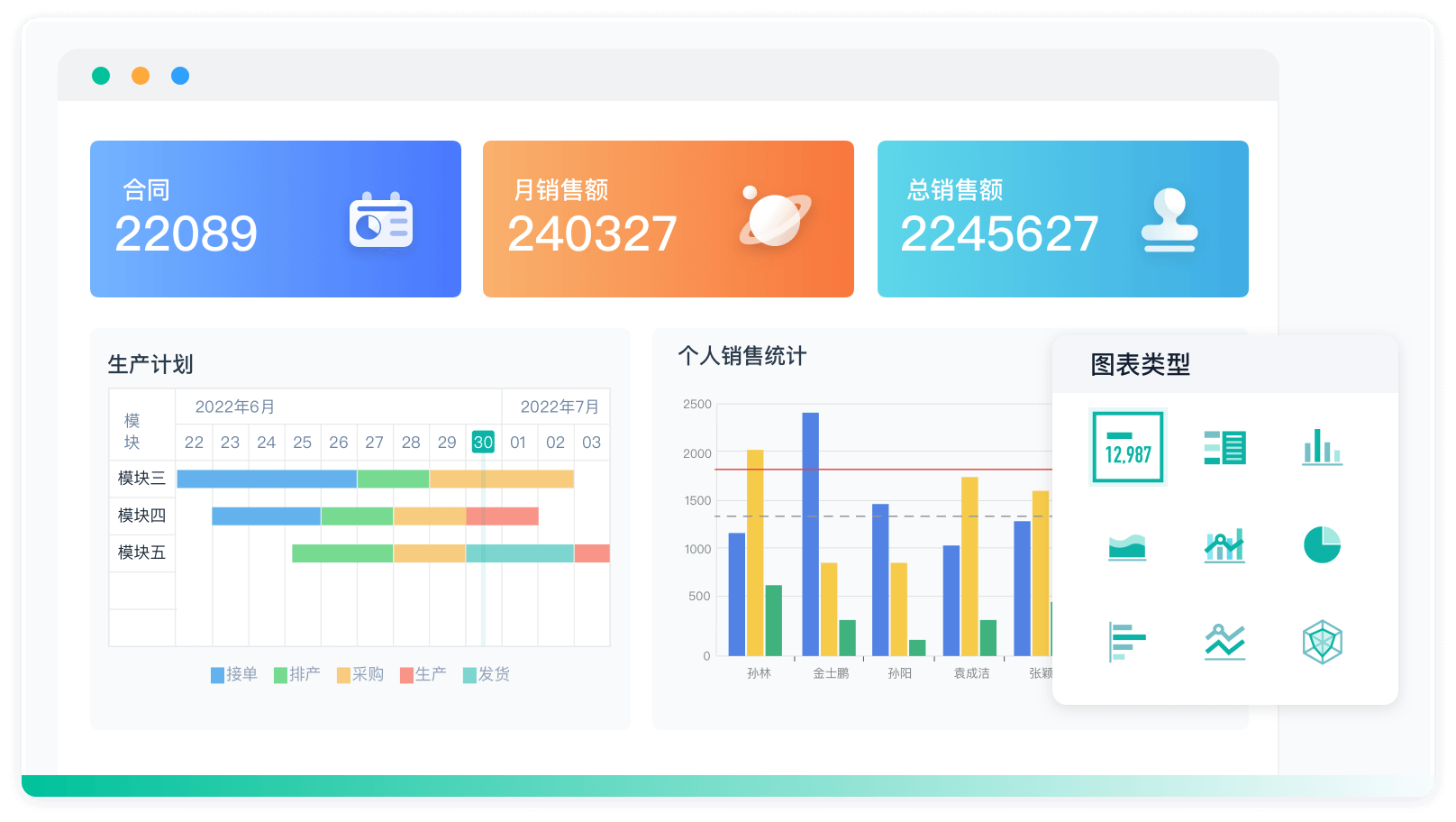
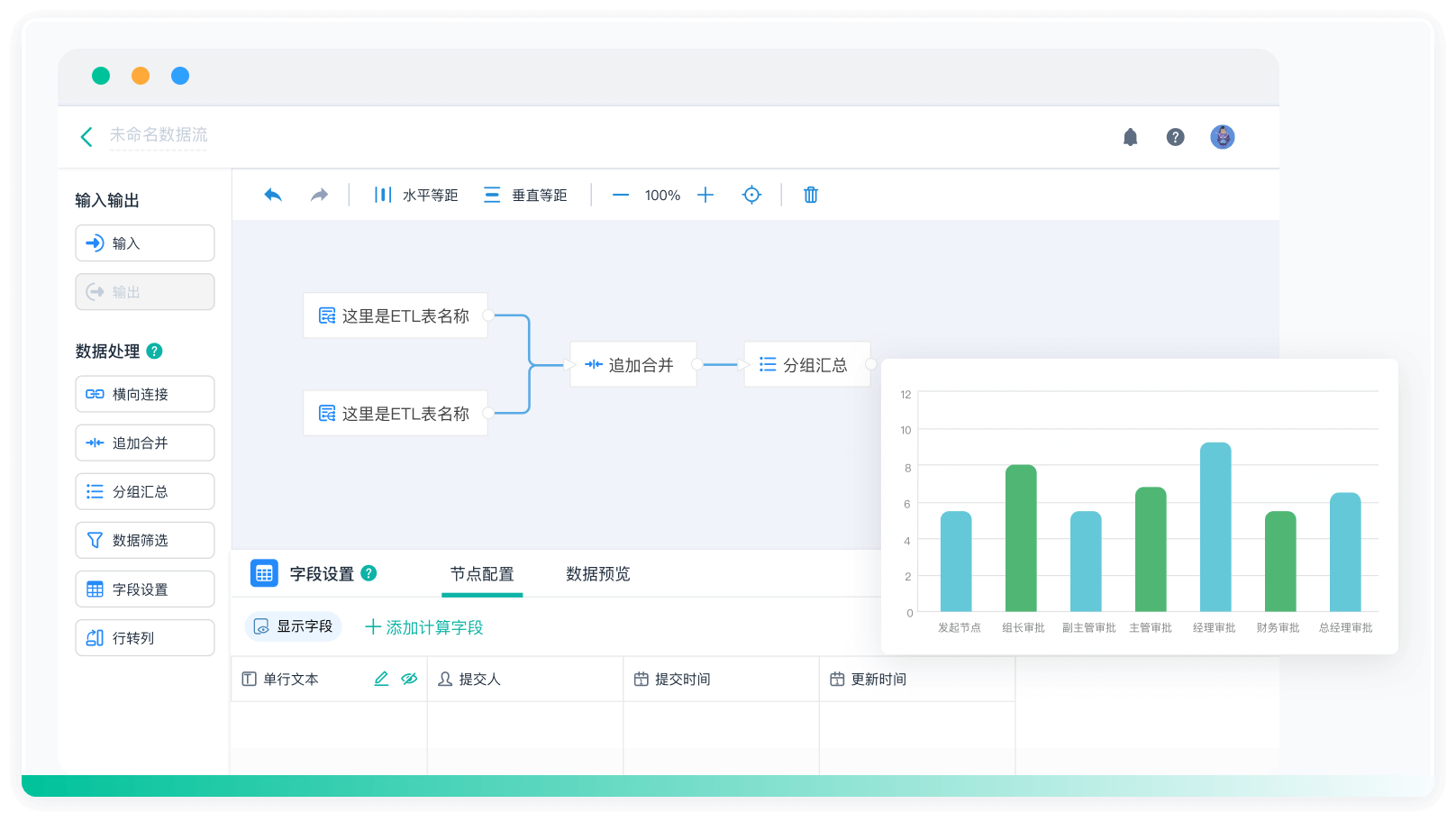
For those interested in creating customized management software without any coding experience, there is a highly recommended zero-code development platform that allows users to build applications in just five minutes. This platform offers a range of pre-designed templates for various business management needs, ensuring that even those with limited technical skills can create effective solutions.
Explore the platform here: https://s.fanruan.com/x6aj1;
Additionally, users can access over 100 free enterprise management system templates that can be installed online without any downloads. This resource is particularly valuable for businesses looking to streamline their operations and enhance efficiency.
Discover the templates here: https://s.fanruan.com/7wtn5;


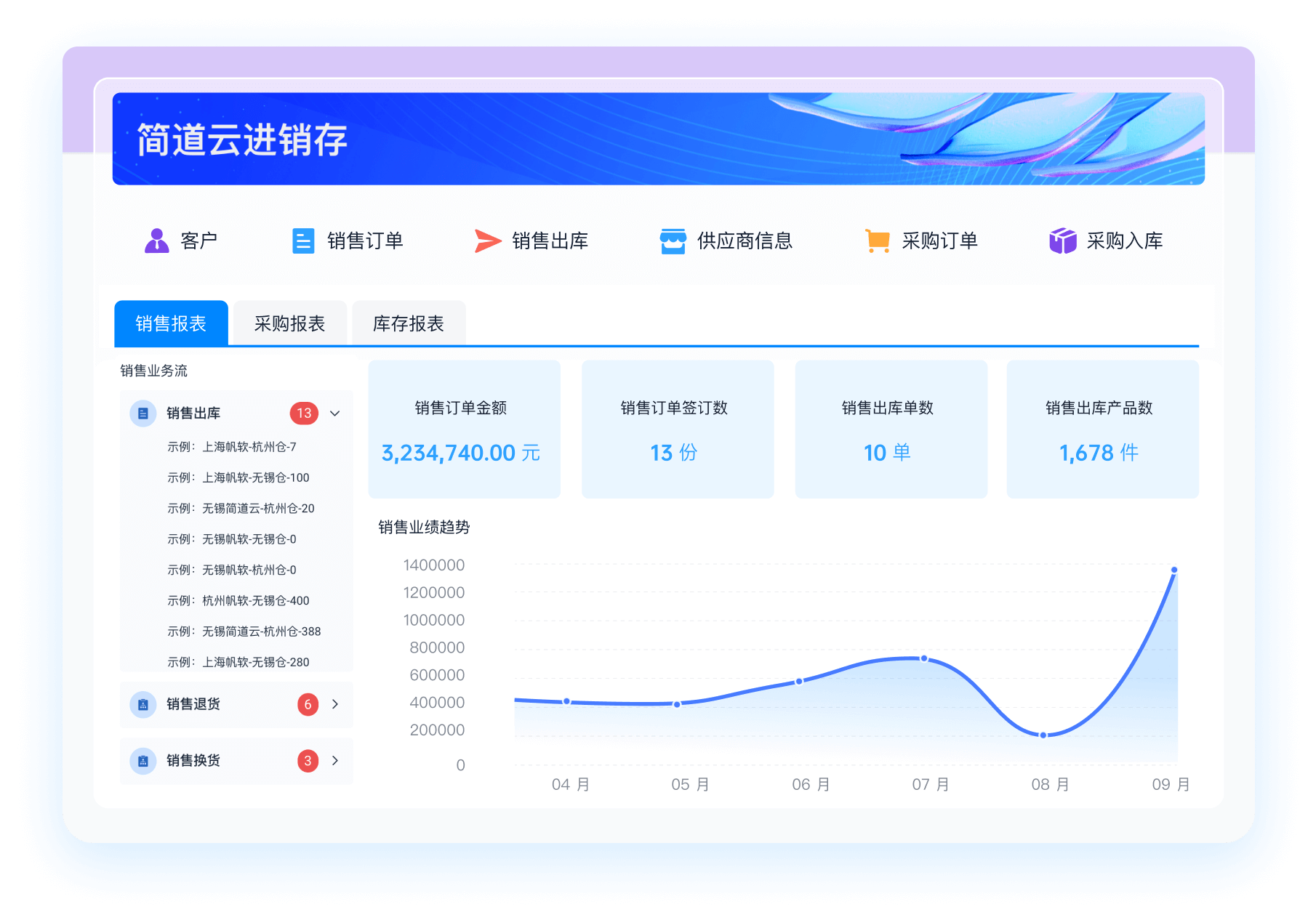
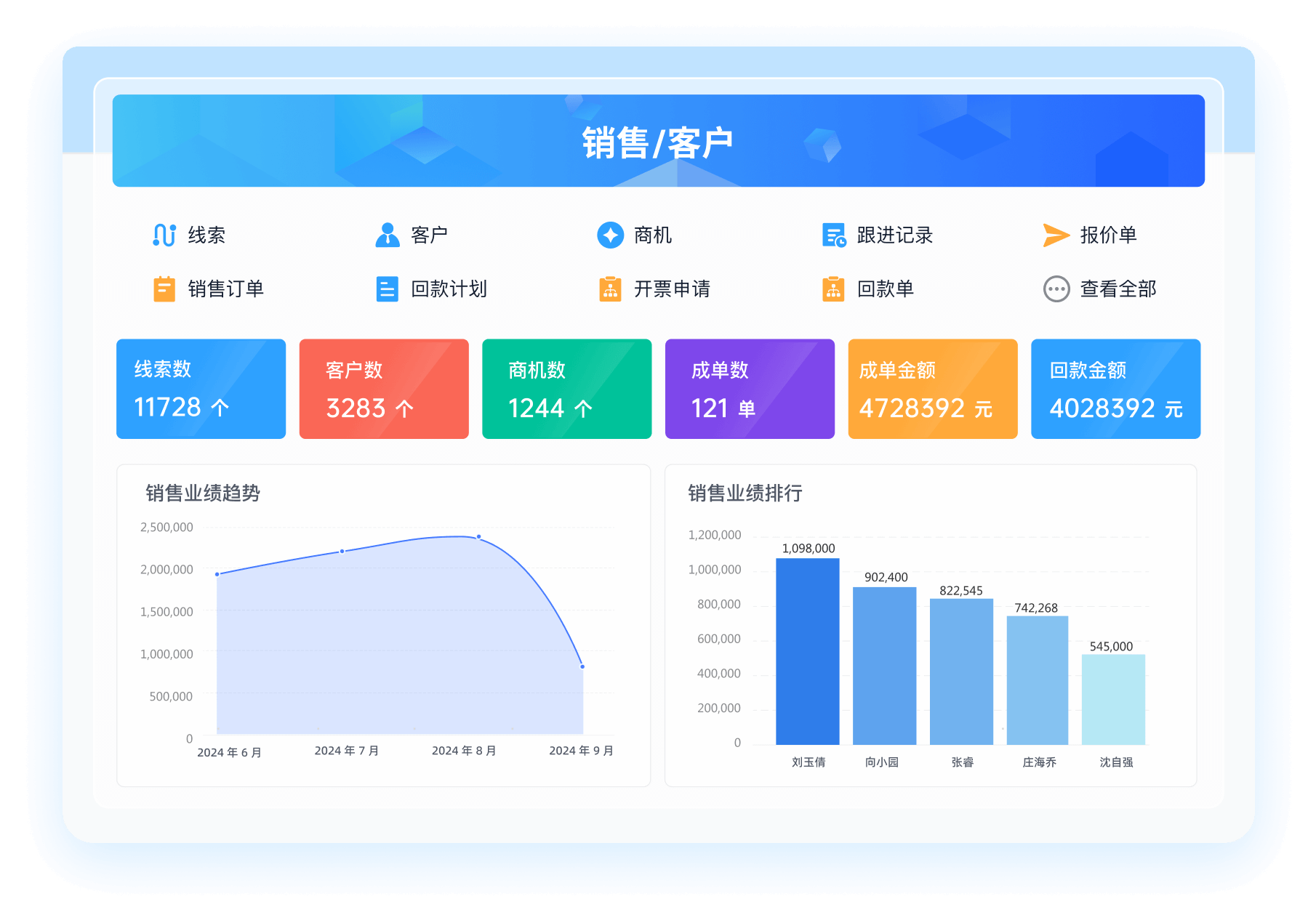
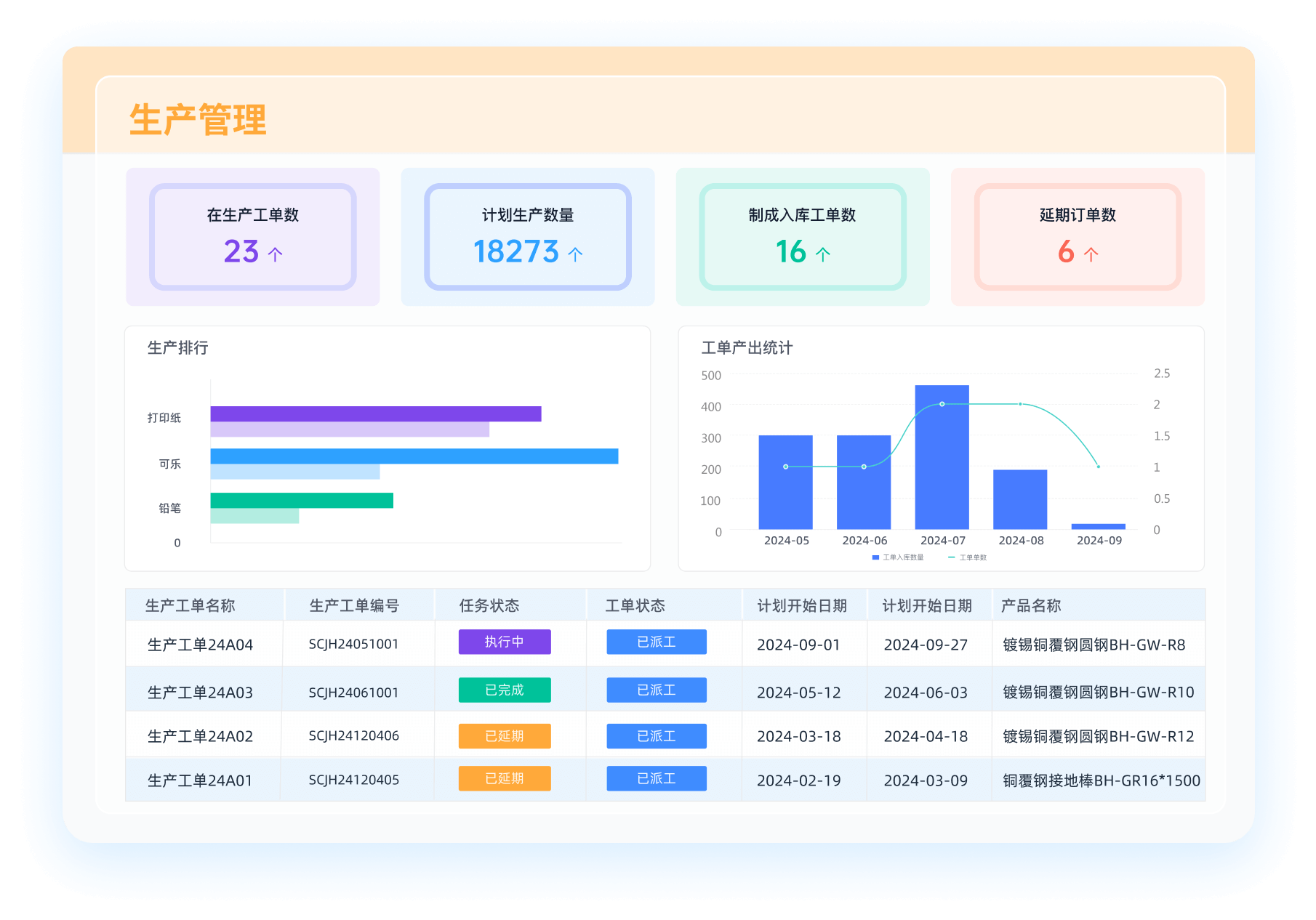
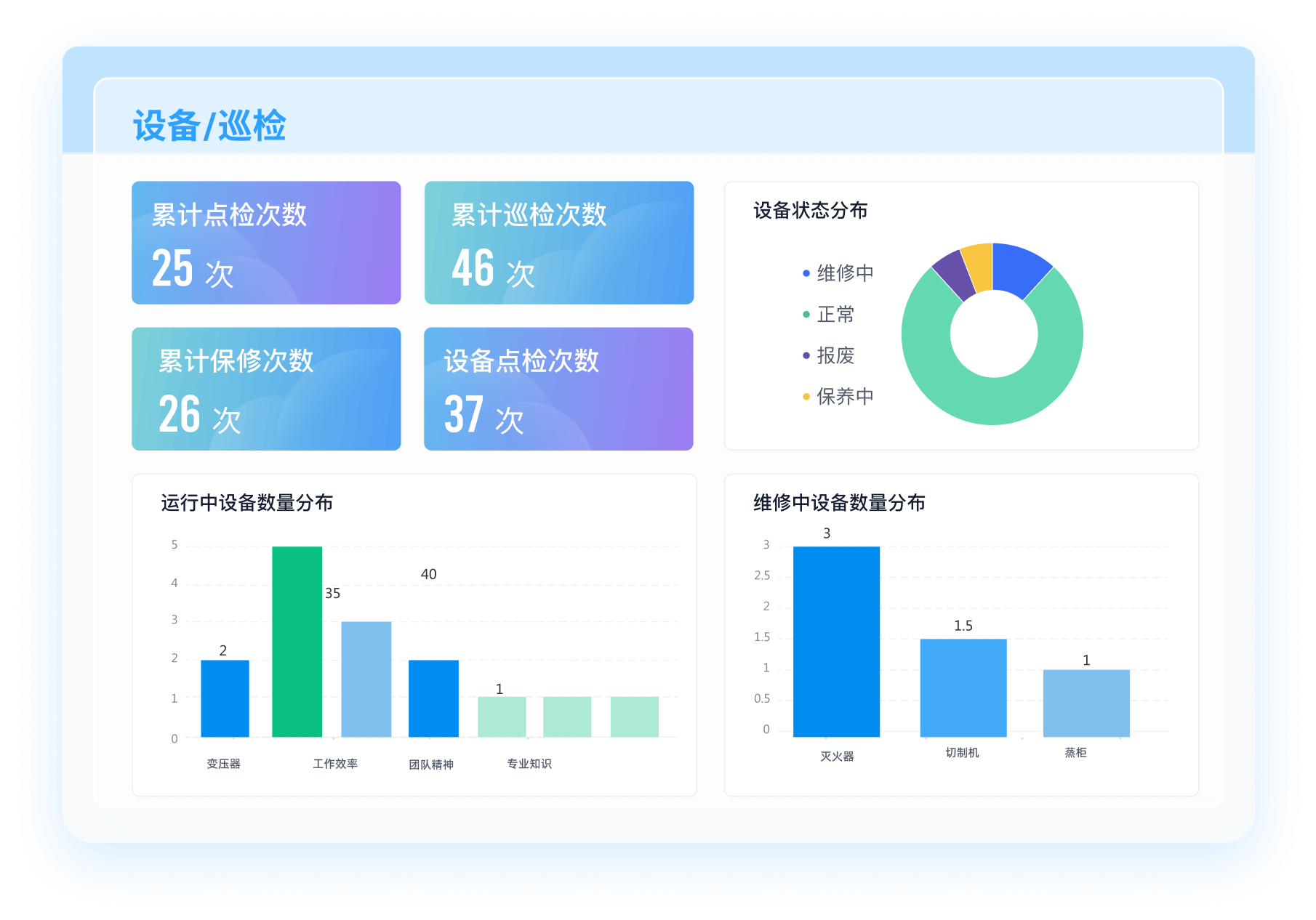




























































 《零代码开发知识图谱》
 《零代码
新动能》案例集
《零代码
新动能》案例集
 《企业零代码系统搭建指南》